Unforgettable car AI video: the car fades in, drives in or is there from the start. How do I fix it?
Updated:
Short answer
The reveal is the hardest beat for a video model, so the car may fade in, drive in or sit behind you from the first frame. Use a clean waist-up photo with no car in it, and run again if needed. A softer reveal in a finished video is still a normal result.
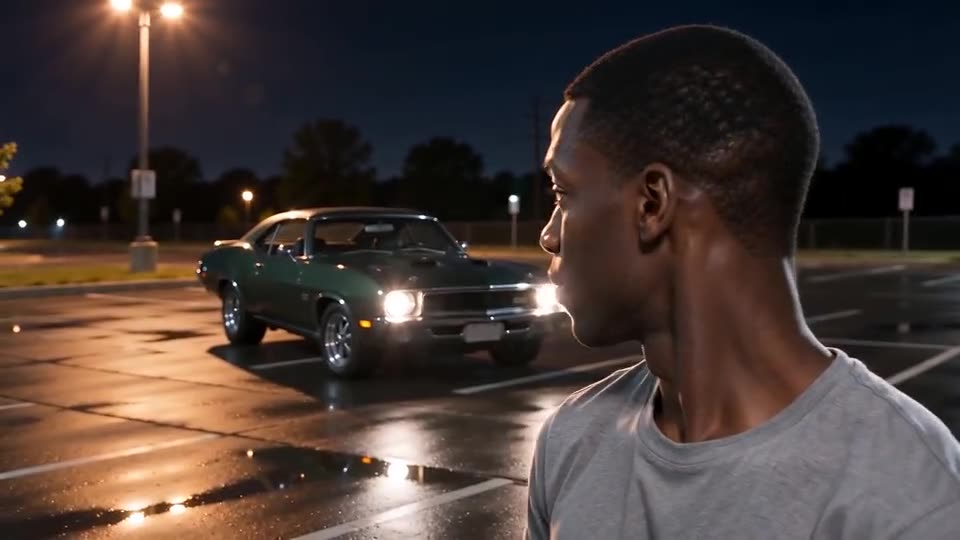
What you should see
- At the start, the space behind you is completely empty and you look into the lens.
- Two green number cards swept up right to the lens, then dropped out of frame in one move.
- The car you picked suddenly parked a few metres behind you, headlights on.
- A glance back at the car, then a reaction: either a calm half-smile with a small wave, or hands on your head in shock.
Why the reveal goes wrong
- A single unbroken shot: the model must make a car appear without a cut, so it sometimes blends it in.
- A car already in your photo: the model may keep it in the background from the start.
- A very short preview: the 5-second preview squeezes the beats, so the cards and the car can merge.
What to try
Retake the photo against a plain background with nothing parked behind you. Every run is different, so another run often gives a cleaner reveal, but a new full video costs 100 credits.
Questions people ask
Does a slow fade-in mean the video failed?
No. A run counts as failed only if it never finishes, and then the credits return automatically. A softer reveal in a finished video is a normal outcome.
Can the car arrive earlier or later?
No. The timing comes from the fixed scene and the site has no setting for it.
Is the full video better at the reveal than the preview?
Usually, because it has more room for the beats. Use the preview as a quick check on your face and the overall look.
Make your own Unforgettable Car video
Upload one photo and make your own video. No subscription, no watermark.
Make my video