How do I make a My Ride Is Here AI video?
Updated:
Short answer
Upload one clear photo of the rider, pick the place, the outfit and the ending, and Tip Toe AI builds the broom scene around it. Run the 5-second preview, then spend 100 credits on a 10-second 720p video. You write no prompt, and you can close the page while it renders.
The steps
- Open the generator on the template page and add the Rider photo.
- Pick the options. Choose the place, the outfit and the ending, or keep the defaults.
- Pick a format. 9:16 suits TikTok, Reels and Shorts, and 16:9 suits YouTube and desktop screens.
- Tick the photo-consent box, log in with Google and run the preview (5 seconds, 480p).
- Render the full video for 100 credits and download the MP4.
What is fixed and what you choose
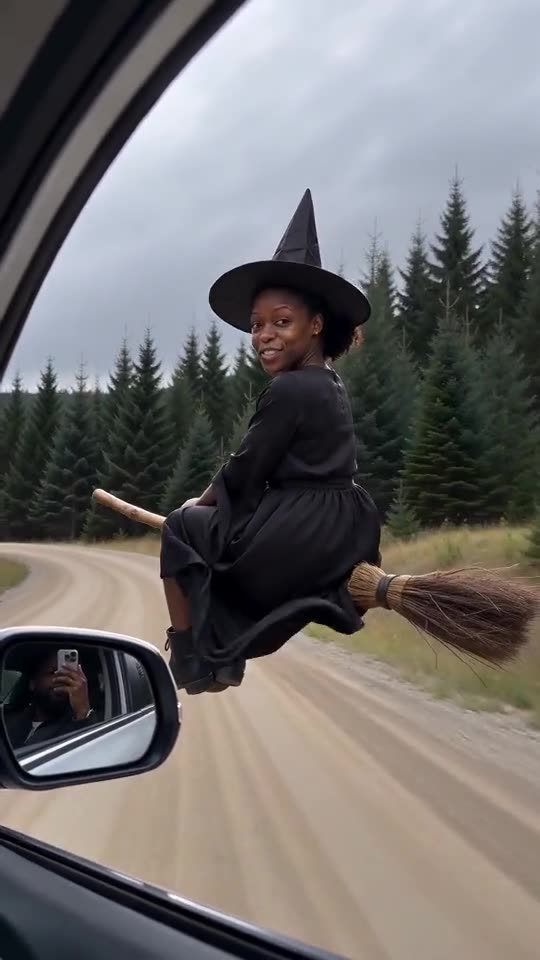
The handheld shot from the car, the broom beside the window, the look back and the order of the beats are built into one scene. You choose the photo, the format and three presets, and you never write or paste a prompt.
Faces, motion and sound still change from run to run, so the preview is the cheapest way to test a photo.
When it is done
The video lands in My videos, where you can download it or copy a share link. Tip Toe AI is an independent tool and is not affiliated with the people who posted the trend.
Questions people ask
Is a prompt required?
No. The scene is fixed. You supply the photo and pick the format and the three presets.
What if I close the tab while it renders?
Rendering continues on our servers, and the finished video is saved in My videos under your account.
Which format should I choose?
Pick 9:16 for TikTok, Reels and Shorts, or 16:9 for YouTube and desktop. The preview works in either one.
Make your own My Ride Is Here video
Upload one photo and make your own video. No subscription, no watermark.
Make my video